What checks inside Dotfile are free?
Last updated: May 2, 2026
A practical reference for compliance managers on the two checks where Dotfile is the provider how they work, what they cover, and answers to the most common operational questions
📄 Document Check — Free of charge
Powered by Dotfile's built-in AI layer. Collecting and reviewing documents incurs no per-check cost on your Dotfile plan.
🌐 Online Reputation Check — Free of charge
Powered by Dotfile's built-in AI layer with no external provider billing applies.
📄 Document Check
The Document Check allows compliance teams to collect, review, and archive any document proof of address, corporate registration extracts, UBO declarations, bank statements, and more directly within a Dotfile case. No external provider is involved: the decision to approve or reject rests entirely with your team.
Documents can be requested from end-users via the Client Portal, or uploaded directly by an analyst in the back-office. Expiration tracking, review history, and template-based automation are all built in.
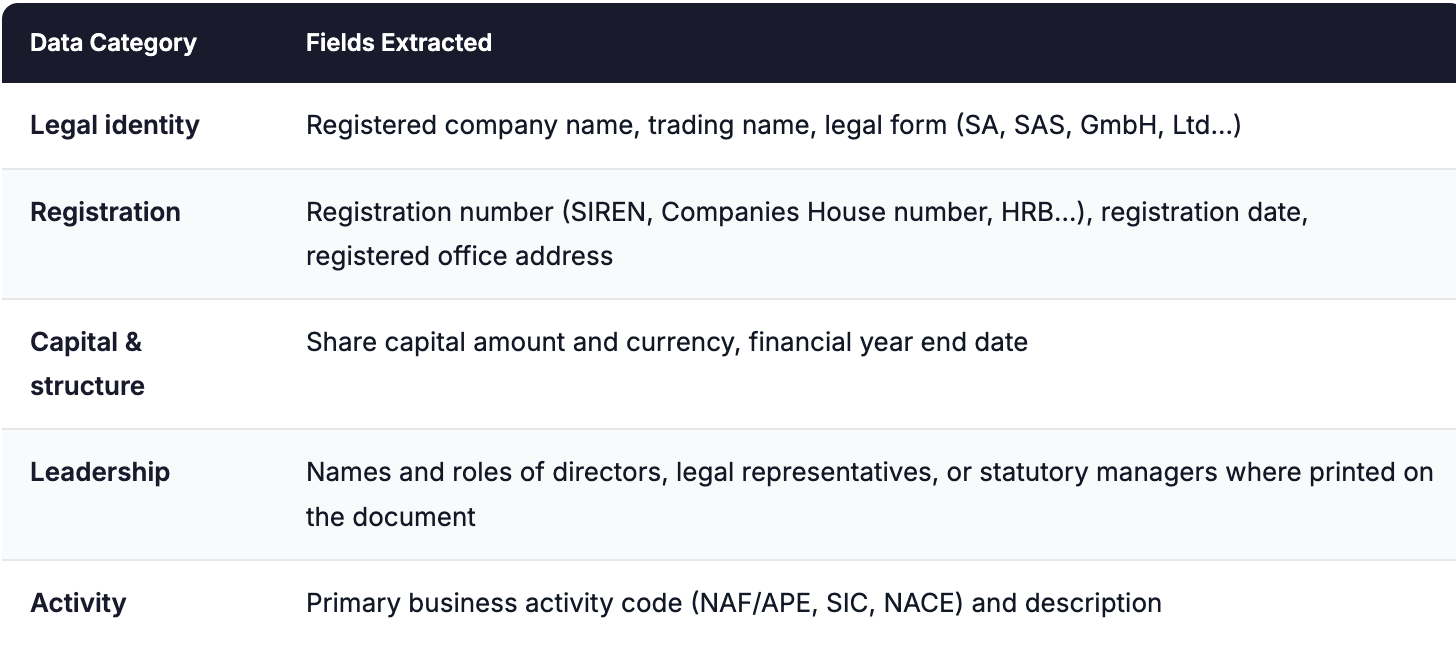
What company information can be extracted from registration documents using OCR?
When a company registration document (such as a certificate of incorporation, or extract from a national registry) is uploaded, Dotfile's AI-powered OCR layer can automatically extract structured data fields and compare it with the information provided by the end customer in the Client Portal. The fields typically extracted include:
⚠ Important
OCR extraction accuracy depends on document quality, scan resolution, and whether the document uses a standard layout. Always verify extracted data against the source document before approving a case. See the troubleshooting section below if OCR returns incomplete results.
How to specify age requirements for proof of address documents?
💡 Compliance note
Document age requirements are configurable per document type, meaning you can apply a 3-month limit to utility bills while allowing 12 months for bank statements, aligned with your internal policy.
Go to Settings → Checks → Document → Document Types in your Dotfile workspace.
Select the relevant document type (e.g. Proof of Address) or create a custom one.
In the document type configuration, locate the Maximum document age field and set the acceptable age in days (e.g. 90 days for a 3-month requirement).
Note: for some documents the Maximum document age field does not exist and you can a custom prompt to do the same.
Save the configuration. Dotfile will now flag documents that exceed the maximum age as requiring review, and the Client Portal will display the age requirement to end-users before they upload it.
Note: for some documents the Maximum document age field does not exist and therefore the Client Portal will not be displayed to the end-users before they upload it.
Can I be notified when a document check expires?
Yes. Dotfile's expiration tracking feature monitors document validity dates and generates alerts before and at expiry. To set this up:
When approving a Document Check, click Set an expiration date and enter the document's expiry date
When the date is reached, the check status changes to Expired and appears in your task list for action.
Enable Notifications in Settings to receive email or in-app alerts ahead of expiry configurable per workspace.
💡 Periodic review tip
Expiration tracking is especially valuable for time-sensitive compliance documents (proof of address, licences). Combined with Dotfile's Periodic Review feature, it enables automated re-verification at the right time.
🌐 Online Reputation Check
The Online Reputation Check is Dotfile's AI-powered check for assessing a company's public web presence. It replaces the manual process of searching across news sources, review platforms, and company registries delivering a structured, auditable reputational risk report in seconds.
Like the Document Check, this is a native Dotfile check: no third-party provider is involved, and there is no per-check billing.
⚠ Custom prompt limits
Custom prompts are capped at 6,000 characters. Use the "Restore default prompt" option in Settings to revert at any time. Always test a new prompt against a sample of real cases before deploying it to production.
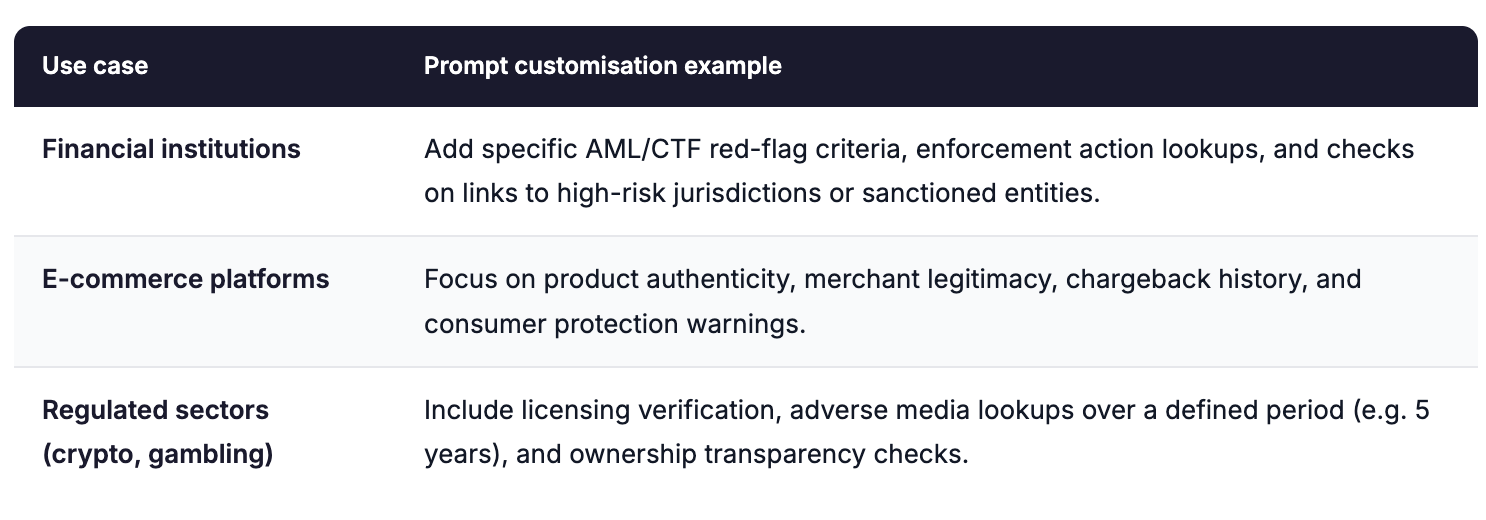
Customising the analysis prompt
The check uses a default prompt that compliance teams can customise in Check Settings (Settings → Checks → Online Reputation) to align the AI's analysis with their internal policies, risk appetite, and sector-specific requirements.