Manage the client portal settings
Last updated: May 30, 2025
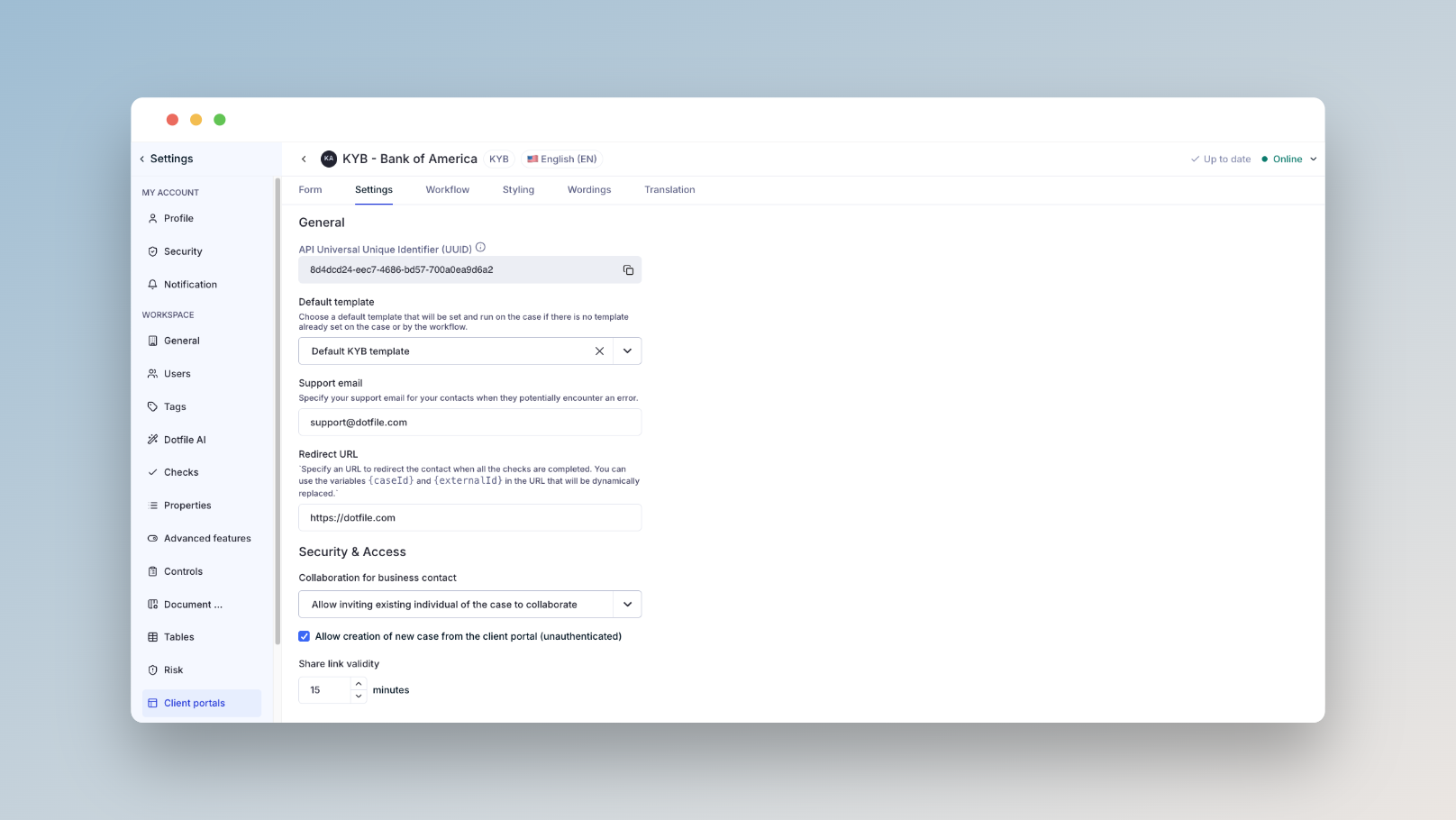
Go to Client Portals > Settings to manage the core configuration of your client portal:
Associated Template: Select from your template library, the template to be applied to cases created via this portal.
Support Email: Optionally add a support contact shown to users in case of errors.
Redirect URL: Define a landing page to redirect users to after completing the Dotfile Client Portal (useful if integrated into your web app or journey).
Access & Collaboration Settings:
Access is secured and limited to users marked as business contacts with a valid email. Choose how collaboration works:
Don’t allow access sharing
Allow sharing with existing individuals
Allow sharing with anyone
Case Creation Mode:
Choose whether the portal is the starting point of your journey (no data known beforehand), if so, check “Allow case creation from client portal”, or if you’ve already created the case (e.g. from your CRM) and you need the client portal for additional data and document collection. In the second situation, uncheck “Allow case creation from client portal”
Link Expiration:
Set the validity period for the access link (from 15 minutes up to 15 days).
More information on the product documentation.